Configuring Azure Private Link for a self-hosted service Enterprise +
The private connection feature is available on the following dbt Enterprise tiers:
- Business Critical
- Virtual Private
To learn more about these tiers, contact us at sales@getdbt.com.
Azure Private Link enables secure, private connectivity between dbt and your self-hosted services. These services may include version control systems (VCS), data warehouses, or any other applications you manage. With Private Link, you do not need to expose your service to the public internet. All communication occurs over a private network, significantly enhancing security. For more details, refer to the Azure Private Link documentation.
What this guide covers
The focus of this guide is not on any particular service or backend architecture, but on the Private Link Service that interconnects dbt with your self-hosted service. This process should be standard across most use cases.
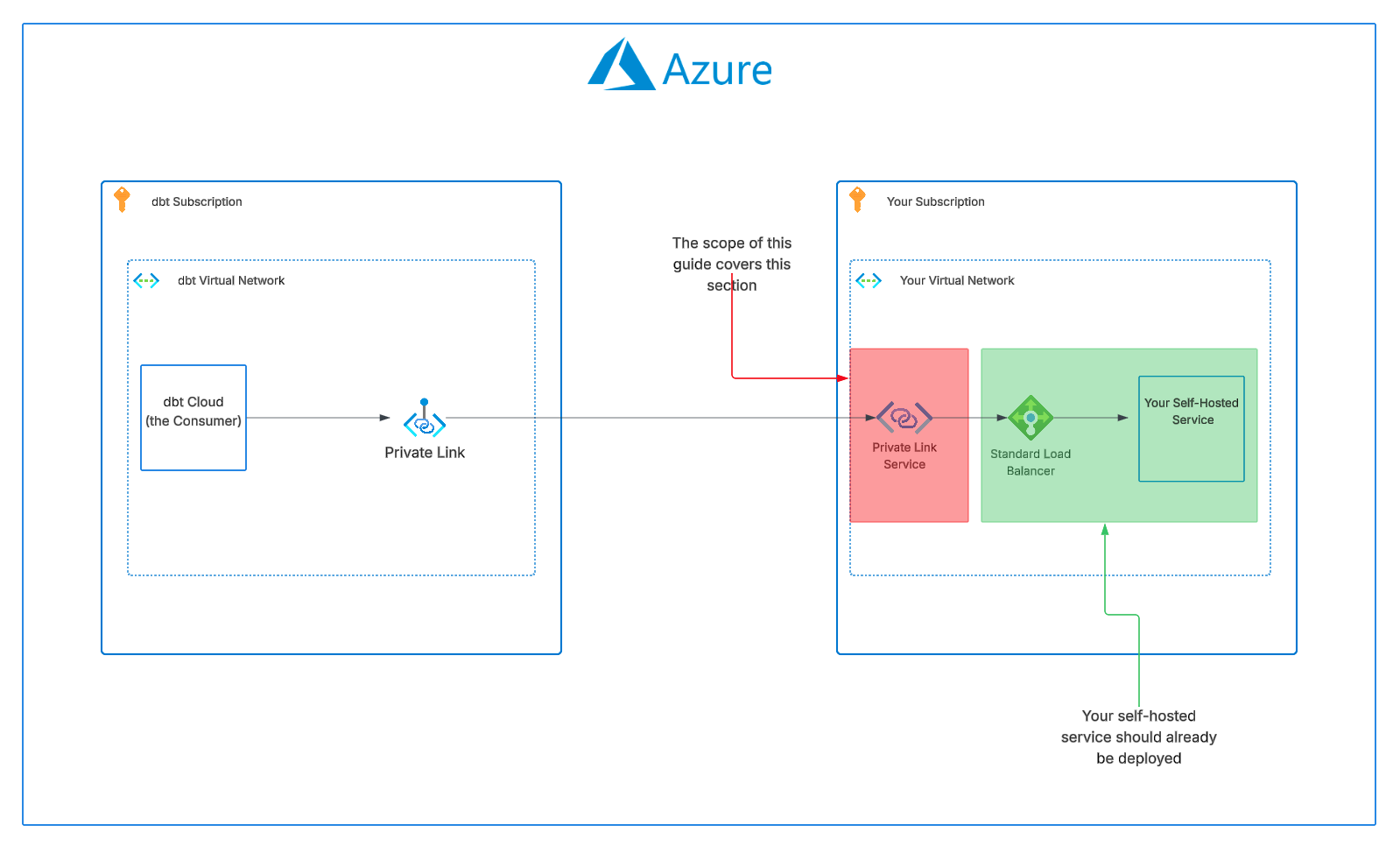 The scope of this guide
Audience
This guide is intended for cloud network administrators or engineers responsible for configuring and maintaining secure network communications within your organization's Microsoft Azure environment.
Terminology
This guide uses several important terms related to Azure Private Link. Understanding these definitions will help ensure successful implementation. For a more detailed explanation of these concepts, refer to the Azure Private Link Service documentation.
- Consumer: In this context, the Consumer is dbt, which creates a private endpoint to connect to your Private Link Service.
- Service provider: Your organization, which owns and operates the service behind the Standard Load Balancer and creates the Private Link Service.
- Private Link Service: The Azure resource that exposes your service to consumers, allowing them to create private endpoints to access it. This is tied to a Standard Load Balancer frontend IP configuration.
- Alias: A globally unique name generated by Azure for your Private Link Service. You share this alias with dbt Support to establish the connection to your service as a consumer.
- Standard Load Balancer: The required load balancer type that sits in front of your service. Your application must run behind a Standard Load Balancer to use Private Link Service.
- NAT subnet: A dedicated subnet in your VNet used for Source Network Address Translation (SNAT) IP addresses for the Private Link Service. Consumer traffic appears to originate from this pool of private IP addresses.
Prerequisites
Before you begin, make sure to review the following requirements:
-
Supported Load Balancer Types
dbt has officially validated Private Link functionality with the following load balancer type:
-
Standard Load Balancer (Internal)
While other configurations may be compatible with Azure Private Link Services, this guide assumes your service is configured behind a Standard Internal Load Balancer. For more details, see the Azure Load Balancer documentation.
-
-
Service Health
- Confirm that your service or application is operational and healthy behind the designated load balancer before proceeding.
-
dbt Azure Subscription ID
- Contact dbt Support to obtain the dbt Azure subscription ID. You will need this in order to allow dbt Cloud to connect to your Private Link Service.
Instructions
- Log in to the Azure Portal.
- Navigate to the Azure Subscription and Resource Group where your self-hosted service is located.
Create a NAT subnet for the Private Link Service
-
Under the Resources section, search for Virtual network and go into the VNet where your self-hosted service is running.
-
Expand the Settings in the left side panel, and go into Subnets. Click the + Subnet button to create a new subnet.
-
In the subnet creation panel:
a. Subnet purpose: Leave as Default
b. Name: Provide a descriptive name, such as private-link-nat-subnet
c. IPv4 address range: Choose the appropriate CIDR block from your VNet that you want to create a NAT subnet from. In this example, the CIDR is 10.30.0.0/16, as seen in the screenshot below.
d. Starting address: Your desired starting address of the new subnet
e. Size: The smallest available size is recommended (for example, /28).
f. Check the Enable private subnet (no default outbound access) checkbox.
g. NAT gateway: Leave as None
h. Leave Network security group and Route table fields as None unless your environment requires specific values here.
i. Leave all remaining fields as their default values.
j. Click Add to create the subnet.
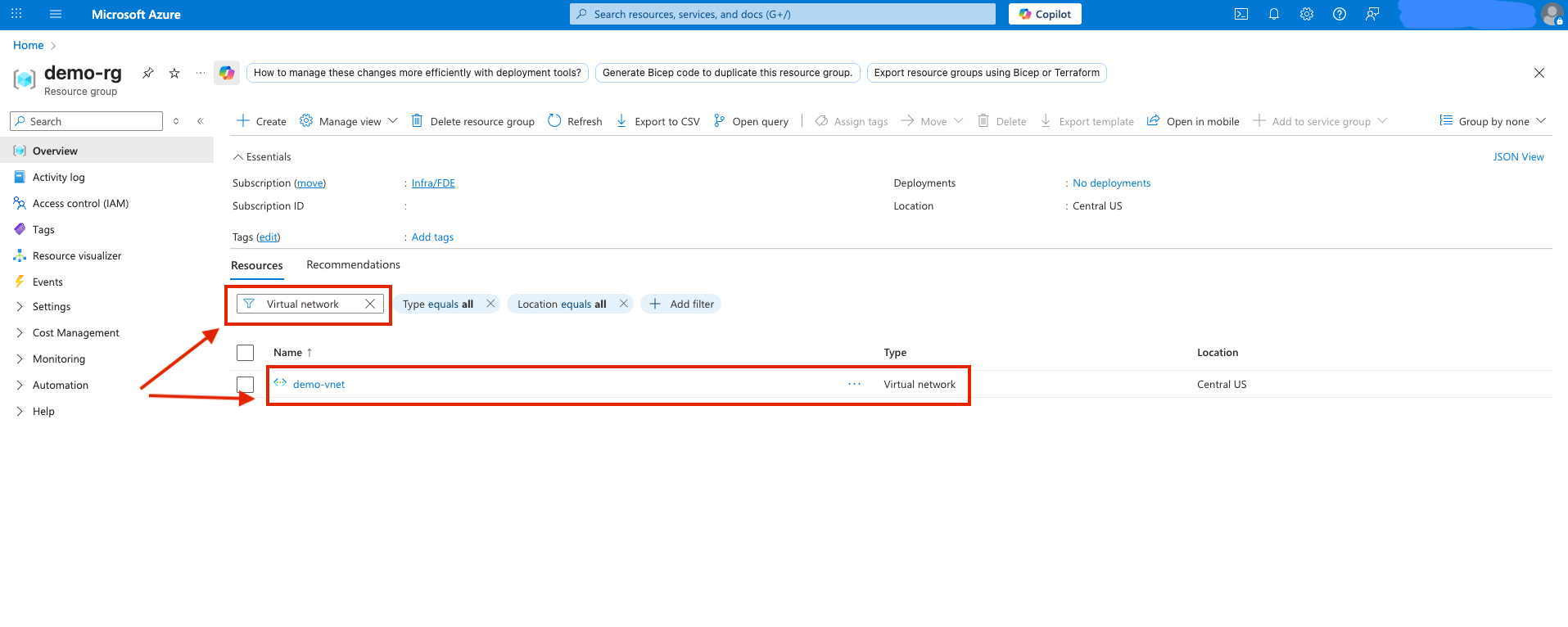 Screenshot of step 3: Search for VNet of self-hosted service
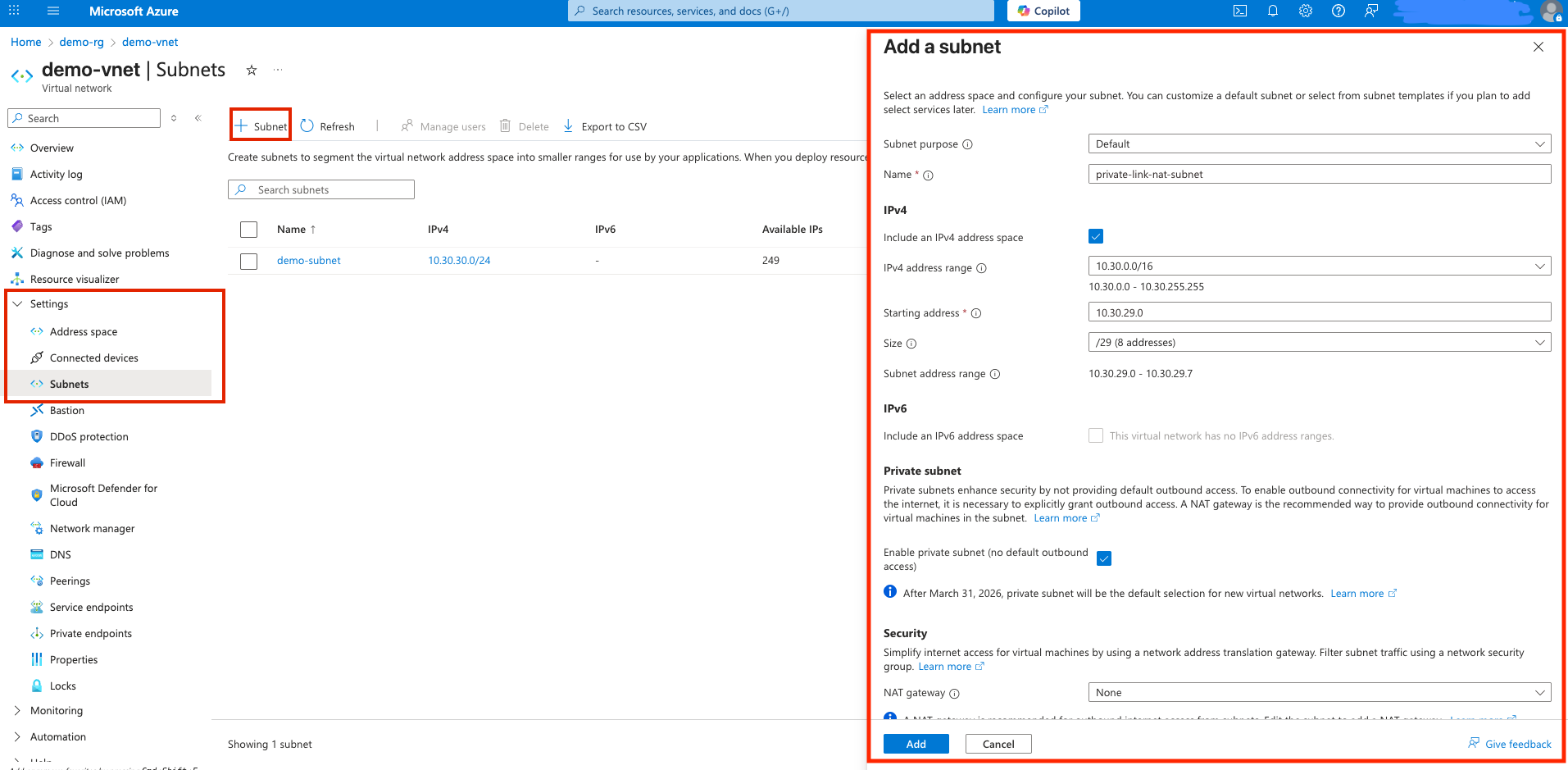 Screenshot of steps 4-5: NAT Subnet creation for Private Link Service
Create a Private Link Service
-
After the subnet creation has completed, in the search field at the top-middle of the portal, search for Private link services, and click on its page.
-
Click the + Create button.
-
In the Create private link service page:
Under Basics
a. Select your Subscription and Resource group
b. Name: Give a descriptive name, such as pls-to-my-vcs
c. Region: Select the region where your self-hosted service is located
Under Outbound settings
d. Load balancer: In the dropdown, choose the Standard Internal Load Balancer that is in front of your self-hosted service
e. Load balancer frontend IP address: Choose the frontend IP configuration for your load balancer
f. Source NAT subnet: Select the NAT subnet you created in step 5 above
g. Source NAT Virtual network: This will auto-populate based on your subnet selection
h. Enable TCP proxy V2: Leave this disabled
Under Access security
i. Select Restricted by subscription
j. Click Add subscriptions and add dbt's Azure subscription ID that you acquired from support
k. Set Request Auto-approve selection to Yes for dbt's subscription
l. Click Next: Review + create, then Create
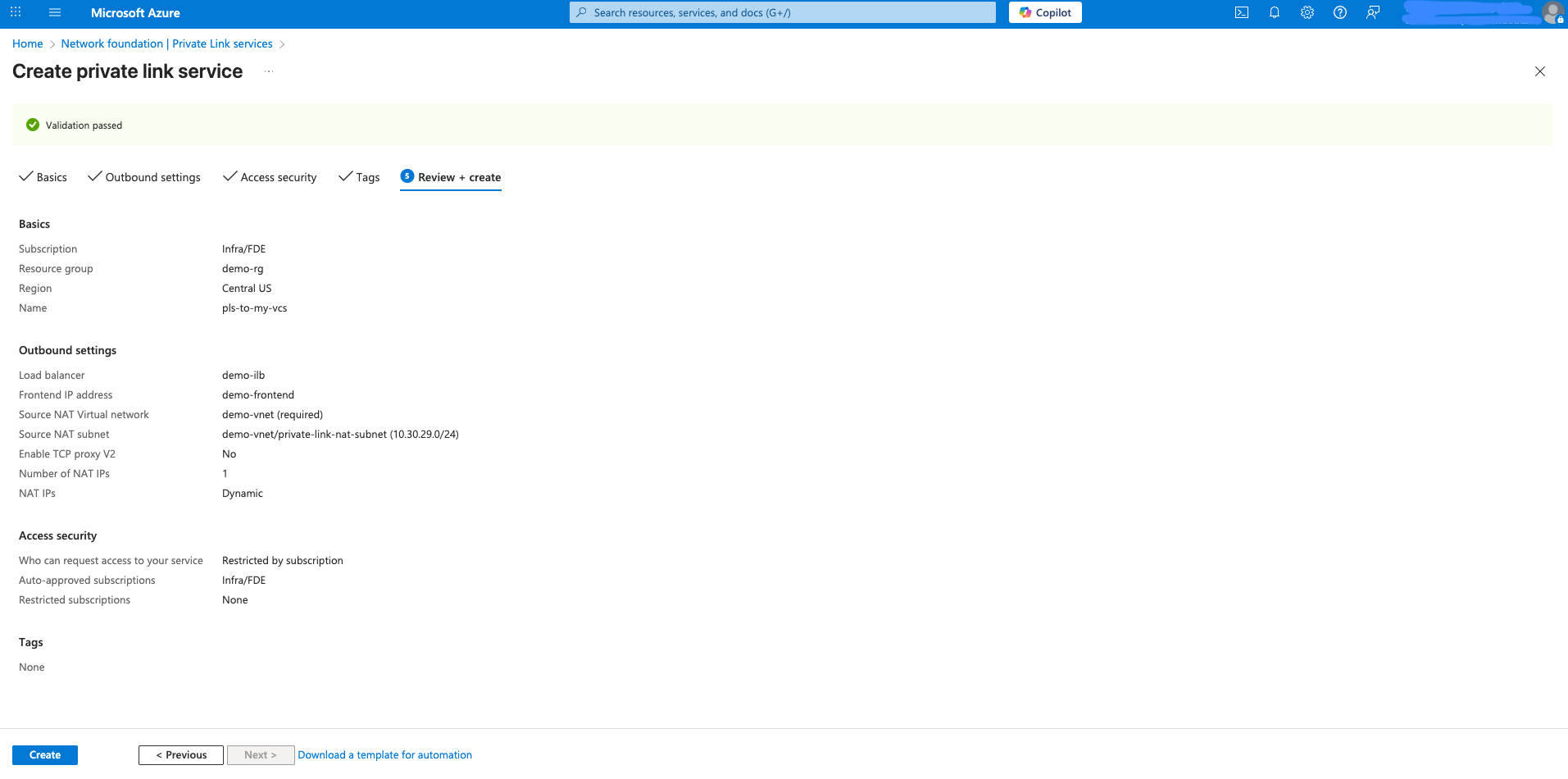 Screenshot of step 8: Creation of Azure Private Link Service
- After the Private Link Service has been created, click on it to open its details page.
- Copy the Alias value (this is the identifier you'll share with dbt Support).
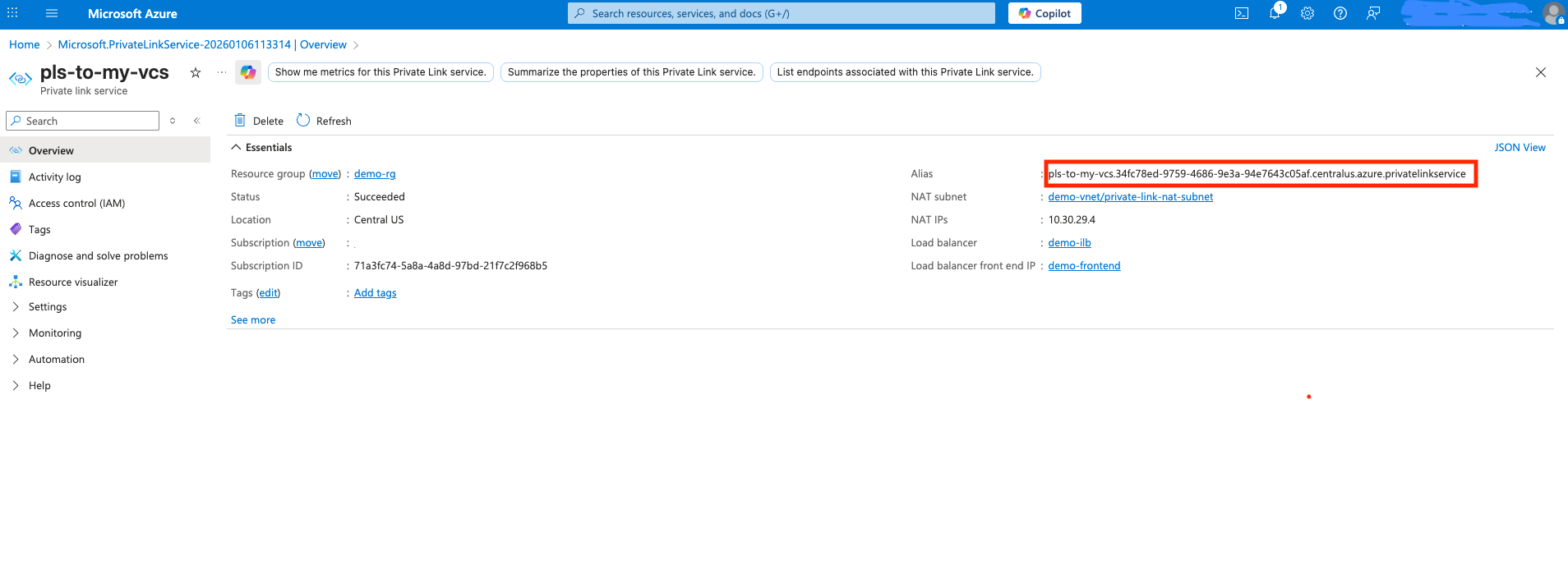 Screenshot of step 10: Copy the Private Link Service Alias
Providing dbt Support with connection details
- Add the required information to the template below, and submit your request to dbt Support:
Subject: New Azure Self-hosted Private Link Request
- Type: Self-hosted Private Link
- Private Link Service Alias:
- Custom DNS (if HTTPS/TLS)
    - DNS record:
- Service Region: (for example, East US, West Europe)
- dbt Azure multi-tenant environment (EMEA):
dbt Labs will work on your behalf to complete the private connection setup. Please allow 3-5 business days for this process to complete. Support will contact you when the endpoint is available.
Was this page helpful?
This site is protected by reCAPTCHA and the Google Privacy Policy and Terms of Service apply.